TeamBro

TeamBro overview deck

TeamBro overview deck1 / 38
Download PDF

Use the arrow keys to turn pages.

TeamBro

A workspace where people and AI work as one team

We added AI agents, plugins, and AI coding collaboration to your team's workspace. This is the TeamBro overview deck.

Team spaceAI agentsSelf-service pluginsVibe coding collaboration
TeamBro1 / 38

A new way of working

AI has started helping with work, but the spaces teams work in are still built only for people.

Scattered work tools

Tasks, documents, messenger, approvals, and HR live in different programs. You copy the same information into several places.

A separate AI for each person

AI doesn't know your company's materials, so you have to explain everything from scratch each time you ask. What you teach it once isn't kept for next time.

AI work your team can't see

Even when you hand code and documents to AI, what was done and how exists only on the requester's screen.

TeamBro2 / 38

TeamBro's four components

AI takes on the work people decide, and the process and results stay in the same space.

01

Team space

Use Messenger, documents, task management, schedules, and approvals in one space, and find everything with a single search.

02

AI agents

AI that gets work done when you delegate it. It operates programs on your PC and learns as it works.

03

Self-service plugins

Build custom plugins that fit your company perfectly, all by yourself.

04

Vibe coding collaboration

Connect what AI coding tools do to tasks so the team can follow progress together.

TeamBro3 / 38

Intro video

See how all four connect, shown on real screens.

  • Handle tasks and approvals in your team space.
  • Hand work to AI agents and help them grow.
  • Build your own company features with self-service plugins.
  • Connect your AI coding tool's work with your team.
TeamBro overview video. It walks through team management tools, AI staff, custom solutions, and developer–AI collaboration on real screens.
TeamBro4 / 38

01

Team space

Do the company work you used to split across many programs in one space. Find all data with a single search, and AI uses that data to help with your work.

TeamBro5 / 38

01Team space

Many work tools in one place

Do everything you used to split across Slack, Notion, Jira, Outlook, and Google Workspace in one place, TeamBro. No need to pay separate subscription fees for each tool.

Messenger project chat room window

MessengerInstead of Slack

Team chat rooms, 1:1 chats, and a chat room for every task.

Mail screen. Inbox list, an open email, and the Create task button

MailInstead of Outlook

Read and reply to company email, and turn it into tasks right away.

Word document editing screen. Ribbon menu and document page

Word documentInstead of Word

Open and edit docx documents exactly as the original looks.
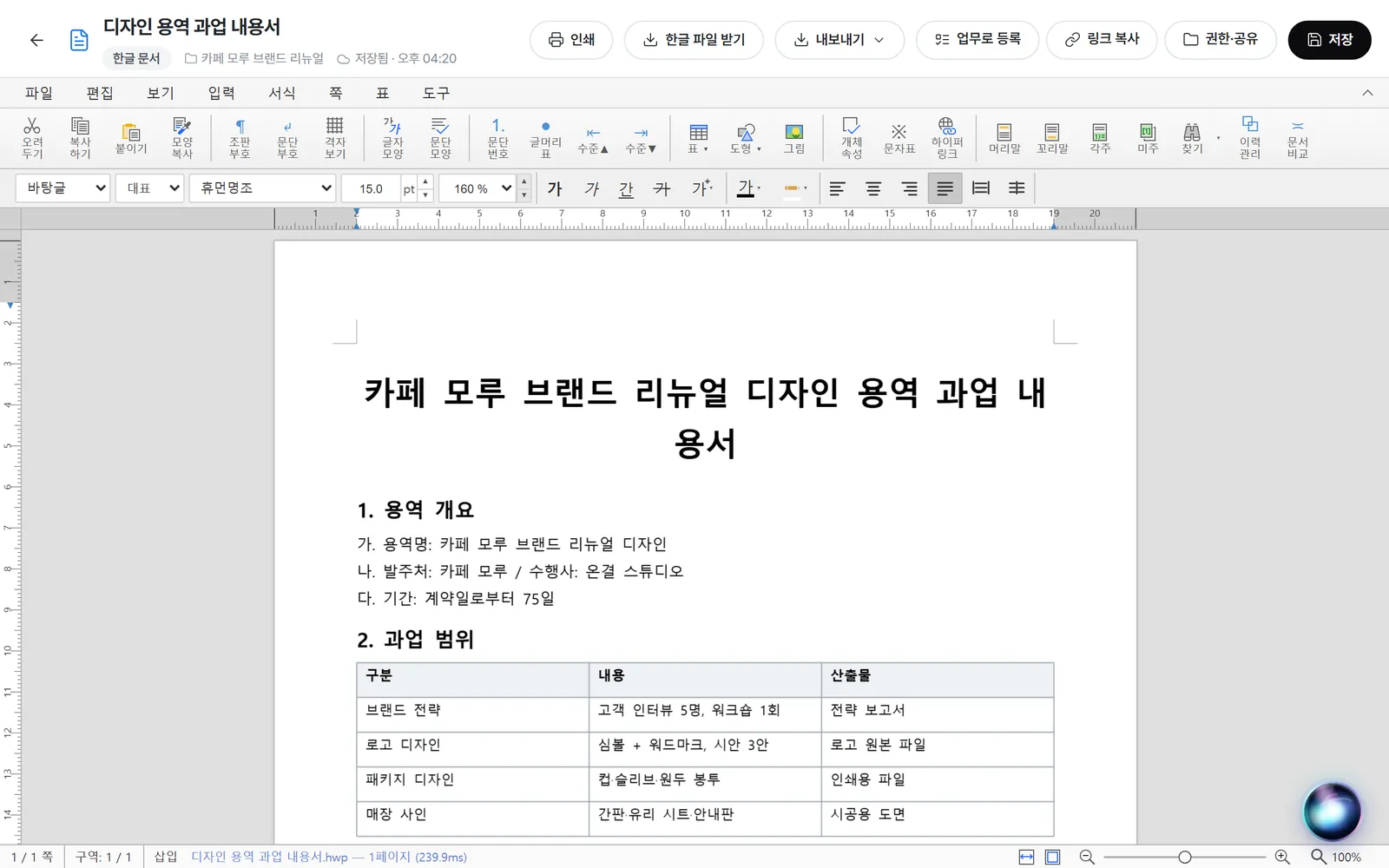
Hangul document editing screen. Hangul menu and scope of work page

HWP documentHangul (HWP)

Open and edit Hangul files with the page layout intact.

Slide editing screen. Page list and cover page

SlideInstead of PowerPoint

Create presentations and download them as PowerPoint files.

Meeting notes screen. Record button, summary, agenda, and decisions

Meeting notesInstead of Notion

Record meetings and organize summaries and decisions.

TeamBro6 / 38

01Team space

Edit Word and Hangul documents in their original format

No need to move received files to another app. Open and edit them in Documents, then download them in the same format.

Word document

Open docx files exactly as the original looks and edit them with the ribbon menu.

Word document editing screen. Home, Insert, and Design ribbons and a brand guidebook draft

HWP document

Open and edit Hangul (HWP) files with pages and tables intact, then download them as Hangul files.
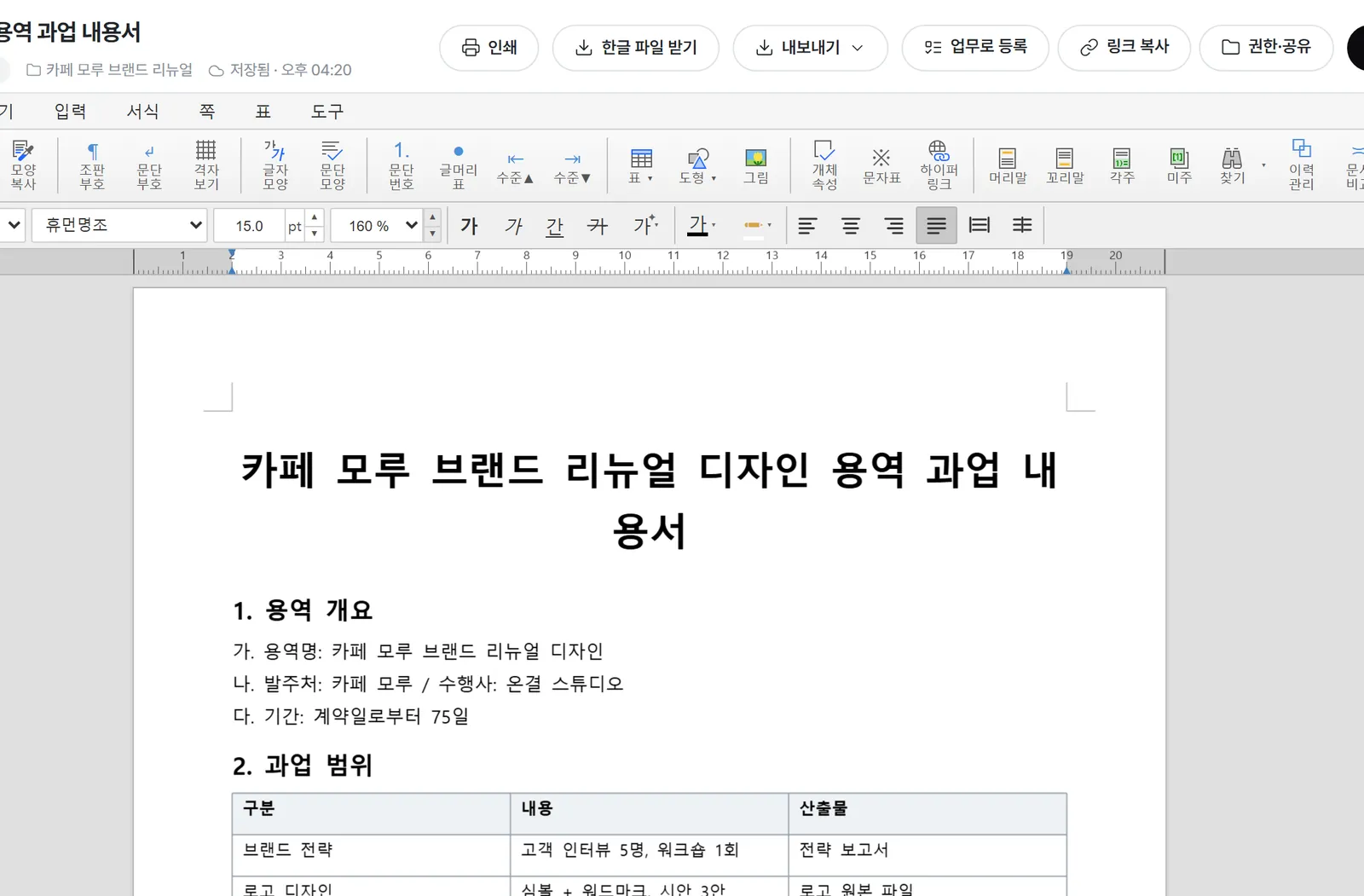
Hangul document editing screen. Hangul menu and a scope of work document with a table
TeamBro7 / 38

01Team space

Email and meeting notes that lead to tasks

No need for a separate mail app or meeting notes tool. Received emails and meeting results are saved right in your projects and tasks.

Mail

Connect your company email account to read and reply, and turn received emails into tasks right away.

Mail screen. Inbox and the Create task and AI reply buttons

Meeting notes

Record a meeting and the summary, agenda, and decisions are organized and saved in the project.

Meeting notes screen. Record button, summary, agenda, and decisions
TeamBro8 / 38

01Team space

Create slides and sheets instantly

Create presentations and summary sheets right in Documents, and edit them together with others.

Slide

Create presentations and download them as PowerPoint files.

Slide editing screen. Page list and interim report cover

Sheet

Create tables like quote comparison sheets and edit them together with others.

Sheet editing screen. Package printing quote comparison table
TeamBro9 / 38

01Team space

Search across company data

  • Find tasks, projects, documents, chats, approvals, and files all at once.
  • No need to remember which program the data was in.
  • Search works even if you type only initial consonants or type Korean on an English keyboard.
  • Filter by type, such as tasks, documents, and chats.
Global search window showing the top results for a client name
TeamBro10 / 38

01Team space

AI that knows your company data

  • AI Bro finds and reads tasks, documents, chats, and approvals with the same search.
  • Say "Summarize the tasks due this week," and it finds the data and puts it in a table.
  • No need to explain your company's situation from scratch.
  • AI reads only the data I can see.
The AI Bro window open on the right side of the task screen. It shows an answer listing this week's due tasks in a table.
TeamBro11 / 38

01Team space

Task and project management

  • View the same tasks as a calendar, Gantt, or Kanban.
  • A to-do list, progress reports, files, and chats all gather in one task.
  • Manage goals, budget, Documents, and reports together for each project.
  • Set a total budget, and the execution rate and balance are calculated automatically.
The task Gantt screen. Tasks for each project appear as duration bars.
TeamBro12 / 38

01Team space

Link documents and messenger to tasks

  • Create pages, documents, sheets, and slides instantly and edit them together.
  • Quotes, proposals, and reports are also created inside projects.
  • In Messenger, each task and project has its own chat room.
  • Turn messages straight into tasks.
Two messenger windows. On the left is the chat list window; on the right is a project chat room window
TeamBro13 / 38

01Team space

Approval and HR

  • Pick a form, draft, and approve through an approval line with approval, consent, finance consent, and CC.
  • Record clock in and out, and request leave, off-site work, and remote work from the calendar.
  • Remaining annual leave is calculated automatically based on the hire date.
  • Register corporate card expenses and link them to projects.
Approval screen. Shows my approval status and the document list
TeamBro14 / 38

02

AI agents

Your company's AI that you delegate work to and grow. It works directly on your PC and learns as it works.

TeamBro15 / 38

02AI agents

AI Bro and AI staff

  • AI Bro knows the screen you're on, so you can ask in a single sentence.
  • AI staff are AI employees with set roles, such as assistant, PR, or customer support.
  • Delegate work and it brings back results for people to review.
  • Work done at set times is handled automatically with routines.
AI staff dashboard. It shows items to review and a list of results the staff brought back
TeamBro16 / 38

02AI agents

Complex work done with a single request

  • "Get ready for next week's Green Table meeting. Find the quote and meeting notes on my PC, make a 5-slide presentation, and email it to Manager Hannah Cole."
  • Ava finds and reads files on your PC, then creates the presentation as a PPTX.
  • Writes an email in Outlook and sends it with the presentation attached.
  • Everything it does is recorded step by step in the work log, so you can check what it did.
Ava task chat with two panes. On the left, the steps for finding files on my PC and making a presentation. On the right, the finished presentation and a summary of the sent email.
TeamBro17 / 38

02AI agents

Assign work from your phone on the go

If you say, "Summarize the email I just got and send it to Team Lead Daniel Brooks on KakaoTalk," Ava reads the email on your office PC and sends it through KakaoTalk.

TeamBro18 / 38

02AI agents

AI that works directly on your PC

Keep the TeamBro desktop app running, and AI finishes the job using the programs and files on your PC.

Operate programs by viewing the PC screen

It clicks with a separate AI cursor on screen, so you can keep doing what you were doing.

Read and write open documents directly

Reads and writes in the Excel, Word, and Outlook documents you have open. It only sends emails you ask it to send.

AI browser research

In the browser inside TeamBro, AI searches, clicks, and types on its own.

PC tasks commanded from your phone

PC tasks requested remotely are done by your PC app that's turned on, and results come back in the same chat.

Runs after approval, stop anytime

It only sends, deletes, or pays when you ask it to, and it checks with you before clicking anything you didn't ask for.

Screens it doesn't handle

AI doesn't handle banking, certificate, or password manager screens.

Viewing your PC screen and operating programs is available in the Windows app.

TeamBro19 / 38

02AI agents

AI staff that learns as it works

  • Reply to results with Like, Dislike, or Redo, and it learns right away.
  • Saying "good job" or "this isn't right" in a chat also counts as feedback.
  • AI organizes what it learned into instructions on its own, and people confirm or discard them.
  • Add skills, routines, and taught materials to grow it to fit your company's work.
An AI staff member's learned items screen. Guidelines it created on its own are shown.
TeamBro20 / 38

02AI agents

Sharing and permission settings

  • Share a well-trained assignee with chosen people or all employees.
  • Only the person who assigned the work sees the tasks and chats, and the AI works only within that person's permissions.
  • Choose Run immediately, Confirm then run, or Block for each type of work.
  • The stricter of the organization policy and your setting applies.
The AI permissions screen in Settings. A list for choosing the execution step for each type of work is shown.
TeamBro21 / 38

02AI agents

The same AI staff, from individuals to teams

AI staff work and learn the same way. Choose Agent Bro when you work alone and TeamBro when you work with your team.

Agent Bro · A PC app just for you

Install it on a Windows PC—no server, no sign-up. With the AI coding tool subscription you already use, hand email checks, routines, and on-screen PC work to AI staff. Your data stays on that PC.

TeamBro · With your team

The same AI staff, combined with a team workspace. Handle tasks, projects, docs, messenger, and approvals in one place, and share well-trained staff with coworkers.

TeamBro22 / 38

03

Self-service plugins

You can build custom plugins that fit your company perfectly. No developer needed: describe it in words and AI builds it for you.

TeamBro23 / 38

03Self-service plugins

Example: Build your own supplier delivery status board

Brightfold Studio needed a screen to see this week's deliveries at a glance. Instead of hiring developers, they built it like this.

1Describe it in words

Write something like "Show this week's deliveries in a table and mark late ones in red," and AI builds it.

The Create extension screen in Settings. A written description of the desired feature and a preview of the delivery table built by AI

2Choose where to attach and preview

Choose a spot like the left menu, a task details tab, or a home card, and preview it with real data.

The Placement & permissions tab of the extension editor. The left menu screen is selected, and a preview appears on the right.
TeamBro24 / 38

03Self-service plugins

Publish it to your company menu

After an admin reviews and publishes it, the whole team uses the same screen. To change something, just ask again.

3Add to the left menu

Once published, Weekly deliveries appears in the left menu and shows your real work data right away.

The Weekly deliveries screen opened from the left menu. It shows this week's delivery count and a delivery list table.

4Also connected to task screens

In the same way, we added a client info tab to the task details.

The client info tab attached to the right of the task details window. It shows the assignee, contacts, and contract info.
TeamBro25 / 38

03Self-service plugins

Pick and install ready-made plugins

  • Plugins include e-approval, HR, expenses, AI staff, research notes, and lease management.
  • Features you haven't installed don't appear in the menu, so the screen stays simple.
  • Each person installs it, and admins can install it for everyone at once.
  • Even if you remove it, the data you created stays.
The Plugins screen in Settings. It shows the list of installable plugins.
TeamBro26 / 38

03Self-service plugins

Check the AI development process

  • Describe the feature you want, and AI writes a draft.
  • It takes effect only after an admin checks the preview and publishes it.
  • Attaches to the left menu, task detail tabs, home cards, approval documents, and project tabs.
  • Checks your organization's rules right before a task is created or completed.
The Build extensions screen in Settings. AI development status and your organization's extensions are listed.
TeamBro27 / 38

03Self-service plugins

Repetitive task automation and external integrations

Automation

When a task is created or its status, assignee, or due date changes, it handles things like notifications and follow-up tasks for you.

Webhook

The moment a task is created or changes, its details are sent to the address you set.

API and integration keys

External programs read and create tasks through the API.

MCP

Work with TeamBro tasks and materials from the external AI tools you already use.

Extensions run in a space separate from the app and only handle data the user can see.

TeamBro28 / 38

04

Vibe coding collaboration

A new collaboration system for the age of vibe coding. Connect what AI coding tools do to your team's tasks.

TeamBro29 / 38

04Vibe coding collaboration

AI and your team, connected through one task

The to-dos your team sets become the AI's work order, and what the AI does is recorded in the task.

Connect AI coding tools

Connect just once from AI development tools in Settings. You can use Claude Code, Codex, Gemini CLI, Cursor, and Grok Build.

Link work items and tasks

When you open a new AI session, the AI first reads that task's to-do list.

AI checks and evidence records

Each to-do is checked when finished, and a git commit is left with the evidence.

Team review and replies

When AI asks something, you get a notification, and when it finishes, a work summary is posted as a progress report.

TeamBro30 / 38

04Vibe coding collaboration

TeamBro window inside AI coding tools

  • Press Ctrl+Shift+Space to see all AI tasks running on this PC.
  • Each task shows whether it's linked to a TeamBro task.
  • Click Connect to pick one of your tasks or create a new task and link it.
  • When AI checks off a to-do, a card appears at the bottom right of the screen.
The TeamBro window on a PC working with AI coding tools. It shows the AI task list and task status
TeamBro31 / 38

04Vibe coding collaboration

See progress within tasks

  • Each AI work row shows the AI tool, who requested it, the branch, and when it last worked.
  • Every to-do the AI finishes comes with evidence of what was checked.
  • Posts written by AI show the name of the person who requested it and the AI tool.
  • See the same details in task details on your phone.
The task detail window. The to-do list shows items checked by AI with their evidence, and the AI work row.
TeamBro32 / 38

04Vibe coding collaboration

Ask a person when judgment is needed

  • When AI runs into something a person needs to decide, it leaves a question.
  • An AI question card appears on screen and you get a notification on your phone.
  • Write your reply and the AI picks it up and keeps working.
  • Finished work is summarized and sent to the assignee and followers.
A work summary posted by AI in a task's progress report. Claude Code appears next to the author.
TeamBro33 / 38

Four parts, connected as one

It's not separate tools stuck together. People and AI work on the same tasks and the same materials.

To-dos set by the team

Create tasks and set a to-do list, assignees, and due dates.

What AI agents handle

Set an AI staff as the task assignee, or ask AI Bro.

Development continuing in AI coding tools

For development, an AI coding tool reads the task's to-do list and does the work.

Build the features you don't have

Build the screens and rules you need as extensions and attach them to the screens you already use.

TeamBro34 / 38

Protecting organization data

A dedicated space for each organization

When you sign up, a dedicated database used only by your organization is created.

Roles & access permissions

Set Hidden, View, or Edit for each menu by role, department, or person.

AI permissions

Set, at the organization level, what the AI can do right away and what it must ask about first.

Encryption of sensitive HR information

HR information such as salary, bank accounts, and addresses is stored encrypted and never read by AI.

Logs and backups

A log records who changed what and when, and organization data is encrypted and backed up daily.

Manage external connections

Admins can view and disconnect external AI connections, and call logs are kept.

TeamBro35 / 38

Anywhere, on PC and mobile

  • Use it right in your browser, no installation needed.
  • Desktop apps are available for Windows and Mac.
  • Check tasks and handle approvals with the Android app.
  • Use it in Korean, English, or Japanese.
TeamBro phone screen. It shows My Home, the task list, and the Approval homeTeamBro phone screen. It shows My Home, the task list, and the Approval homeTeamBro phone screen. It shows My Home, the task list, and the Approval home
TeamBro36 / 38

One team price for up to 10 people

EARLY ADOPTER

Team early adopter

169,000KRW / team·month

Includes 10 people and VAT. This is the price for the first 6 months after you start paid use. It's for new teams who take part in usage and feature feedback.

TEAM

Team

249,000KRW / team·month

Includes 10 people and VAT. The price for the whole team is the same even with fewer than 10.

ENTERPRISE

Enterprise

Contact us

If you have 11 or more people or need help getting started, we'll check headcount, capacity, and integration scope together.

Try it free for 14 days with no card required, and you won't be charged automatically when the trial ends. To use AI features, each organization needs to set up AI integration. We'll explain AI usage costs and what's included during the onboarding consultation.

TeamBro37 / 38
TeamBro

Start your team space

Just enter your organization name and admin details to create a dedicated workspace. Try it free for 14 days.

Website teambro.ai

Contact us about adoption kjh@weven.kr

Help center 02-6951-1136 · support@weven.kr

TeamBro38 / 38