Team space
Do your company work in one space
Tasks, projects, documents, chats, approvals, HR, and expenses are all in one place. Work flows on without switching between programs.
Projects and tasks
Set to-dos and follow them through together
Create tasks and set assignees and due dates. Group them into a project to manage goals, budgets, documents, and reports in one place.


View tasks in Calendar, Gantt, or Kanban
View the same tasks as a calendar, Gantt, or Kanban. In Gantt, drag bars to change the schedule; in Kanban, drag cards to the next column to change the status.
View tasks & projectsEverything a task needs, in one place
In the task detail window, check off the to-do list and leave progress reports. Files, chats, and activity history are attached to the task, so they're easy to find later.
View tasks & projectsSee a project's goals and budget together
Inside a project, Tasks·Schedule, Documents, Budget·Expenses, and Reports·Deliverables are split into tabs. Set a total budget and the execution rate and remaining balance are calculated automatically.
View tasks & projectsCreate documents instantly and edit together
Create pages, documents, sheets, and slides right from Documents. Multiple people can edit at once, and you can build quotes and proposals here too.
View documentsMessenger chats lead to tasks
There are 1:1 and group chats, and each task and project has its own chat room. In the desktop app, chat rooms open in separate windows. You can turn any message into a task right away.
View Messenger · MeetingsDocuments and team tools
Many work tools in one place
Do everything you used to split across Slack, Notion, Jira, Outlook, and Google Workspace in one place, TeamBro. No need to pay separate subscription fees for each tool.



Word document
Open docx files exactly as the original looks and edit them with the ribbon menu.
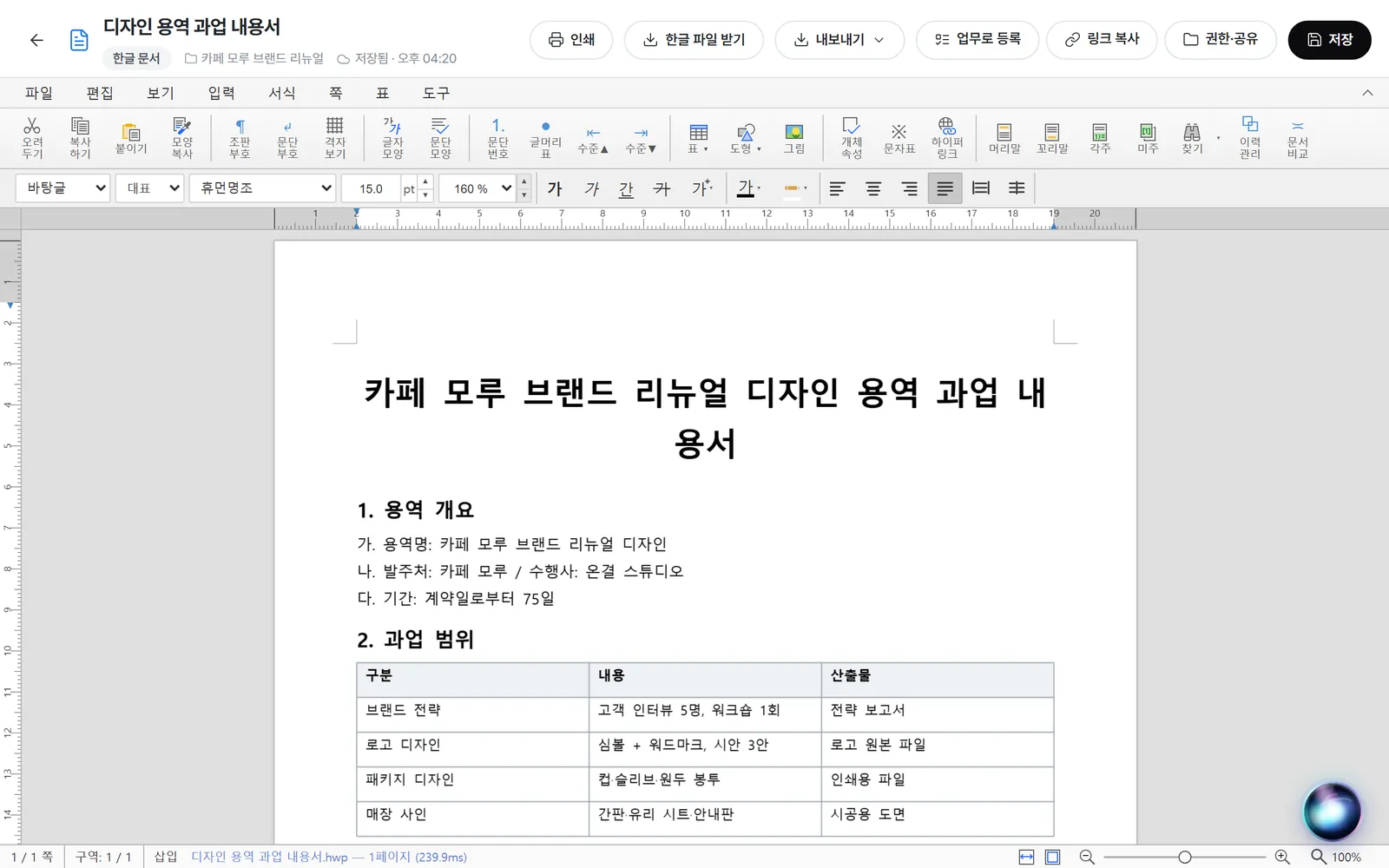
HWP document
Open and edit Hangul (HWP) files with pages and tables intact, then download them as Hangul files.
Slides and sheets
Create presentations and download them as PowerPoint files. Edit tables, like quote comparison sheets, together with your team.
Connect your company email account to read and reply, and turn received emails into tasks right away.
Meeting notes
Record a meeting and the summary, agenda, and decisions are organized and saved in the project.
Work life
Handle approvals and HR right where you work
Submitting requests, applying for leave, and organizing corporate card expenses all happen in the same space. You can install only the features you need.


Approval
Pick a form such as a proposal request, payment request, or leave request to draft, then approve along the approval line. The approval line includes Approval, Consent, Finance consent, and CC, and you can build your own company forms.
View Approval · HR · ExpensesHR and leave
Record clock in and clock out with a button. Request leave, overtime, off-site work, business trips, and remote work from the calendar. Remaining annual leave is calculated automatically from your hire date.
View Approval · HR · ExpensesExpenses
Register money spent on the corporate card. Choose a category to see the limit and required fields. Link expenses to projects to keep them organized.
View Approval · HR · ExpensesOrg chart and access permissions
Organize departments and people in an org chart. Admins decide who can see which menus and materials by role, department, or person.
View security & adminKeep working across PC and phone
Use it right in your browser, or download the Windows, Mac, and Android apps. On the go, check tasks and handle approvals from your phone.


Why one space is easier
Find it all at once
Find tasks, projects, documents, chats, approvals, and files with a single search box.
Notifications gather in one place
New task assignments, mentions, and approval requests all arrive in one notification inbox.
Everything is logged
Tasks and projects keep a record of who changed what and when.
Work with outside people too
Invite people from partner companies to a project and set what they can see.
A space used only by your organization
When you sign up, a dedicated database used only by your organization is created.
AI works from the same materials
AI Bro and AI staff help out based on this space's tasks and documents.
See each feature in more detail
Tasks & projects
Explore calendar, Gantt, and Kanban views, project goals and budgets, and reports.
View detailsDocument
Create pages, Word, Hangul, sheets, and slides, and edit them together.
View detailsMessenger · Meetings
Explore the messenger, task chat rooms, meeting notes, and notifications.
View detailsApproval · HR · Expenses
Explore approval lines, clock in/out and leave, and corporate card expenses.
View detailsSecurity & admin
See the dedicated organization space, access permissions, and backups.
View detailsUse cases
See how executives, planning, development, marketing, and management support teams use it.
View detailsCreate your team's space
Just enter your organization name and admin details to create a dedicated workspace. Try it free for 14 days.
Start without registering a card. You won't be charged automatically when the trial ends.